
TradingView paper trading is a free simulator that lets you buy and sell stocks, forex, crypto and futures with virtual money. The account starts with $100,000 in virtual funds, it is available to every user and you connect it from the chart in a few clicks.
This guide explains how to start, how to place a trade, how to reset the balance and where the simulator differs from real trading. The details come from TradingView's paper trading page and its help centre.
TradingView paper trading at a glance
| Feature | Details |
| Cost | Free, on every plan |
| Starting balance | $100,000 in virtual funds (you can change it) |
| Account currency | Chosen when you create or reset the account |
| Assets | Stocks, forex, crypto, commodity and index futures |
| Order types | Market, limit and stop, with stop loss and take profit |
| Leverage | Preset by asset class, adjustable |
| Commissions | Off by default, you can switch them on |
| Accounts | Several sub-accounts, each with its own settings |
Source: TradingView help centre and blog, November 2026.
How to start paper trading on TradingView
You need a TradingView account, and the free Basic plan is enough. TradingView states that paper trading is available globally for all users. Several TradingView alternatives, such as ProRealTime, NinjaTrader and MetaTrader 5, also include a paper trading mode.
- Open Supercharts: log in and open a chart of any symbol.
- Click the Trade button: it sits in the top-right corner of the chart and opens the list of brokers available in your region.
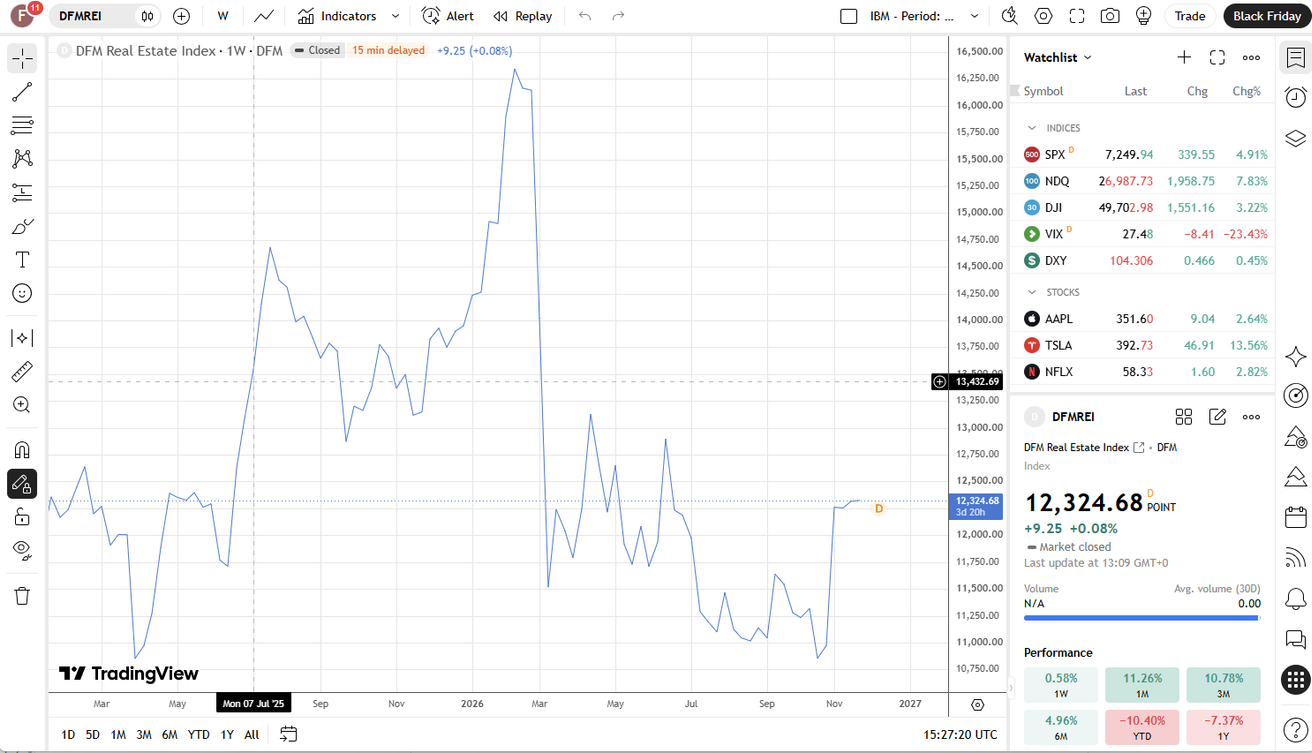
The Trade button on the chart. Screenshot from our own TradingView account, 23 November 2026.
- Select Paper Trading: it appears under "Practice risk-free", next to Replay Trading and above the list of brokers. Click it and connect, and the Trading Panel opens at the bottom of the chart with your virtual balance.
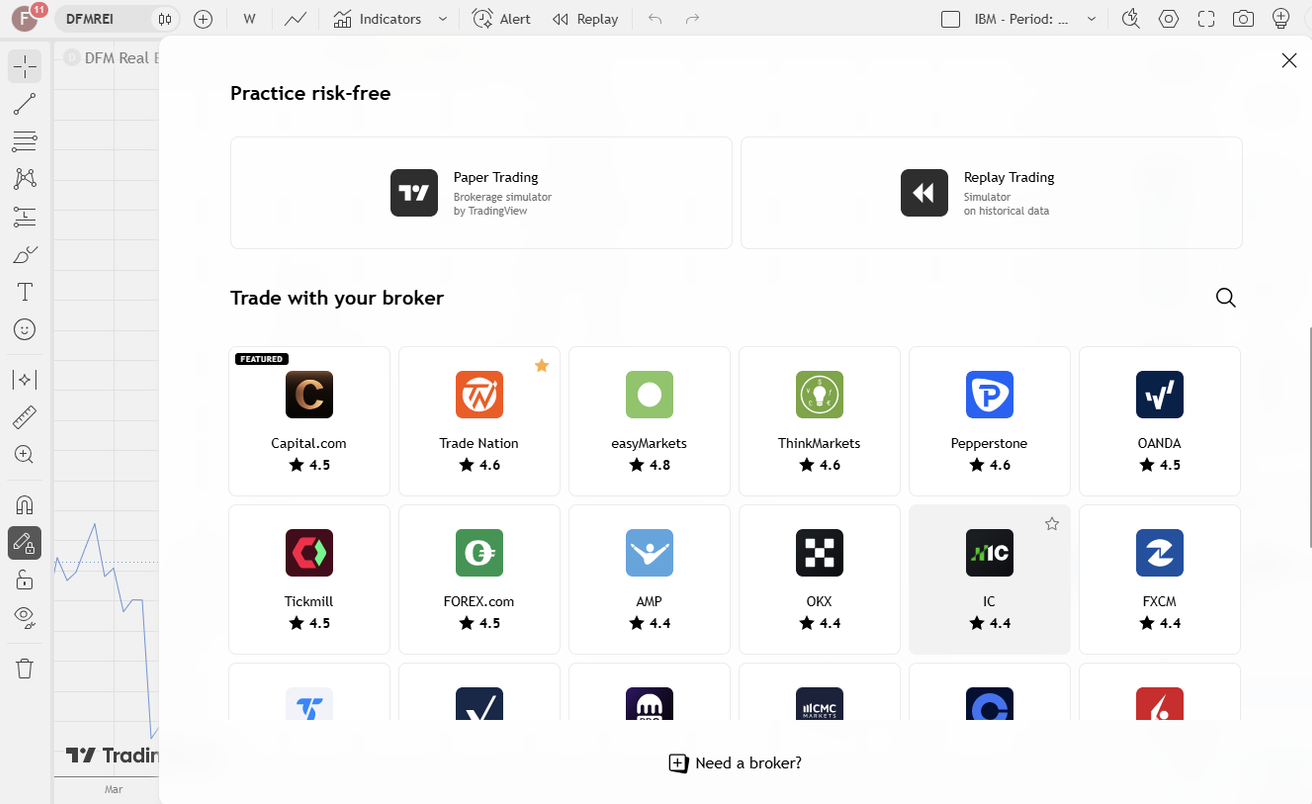
Paper Trading in the list of brokers. Screenshot from our own TradingView account, 23 November 2026.
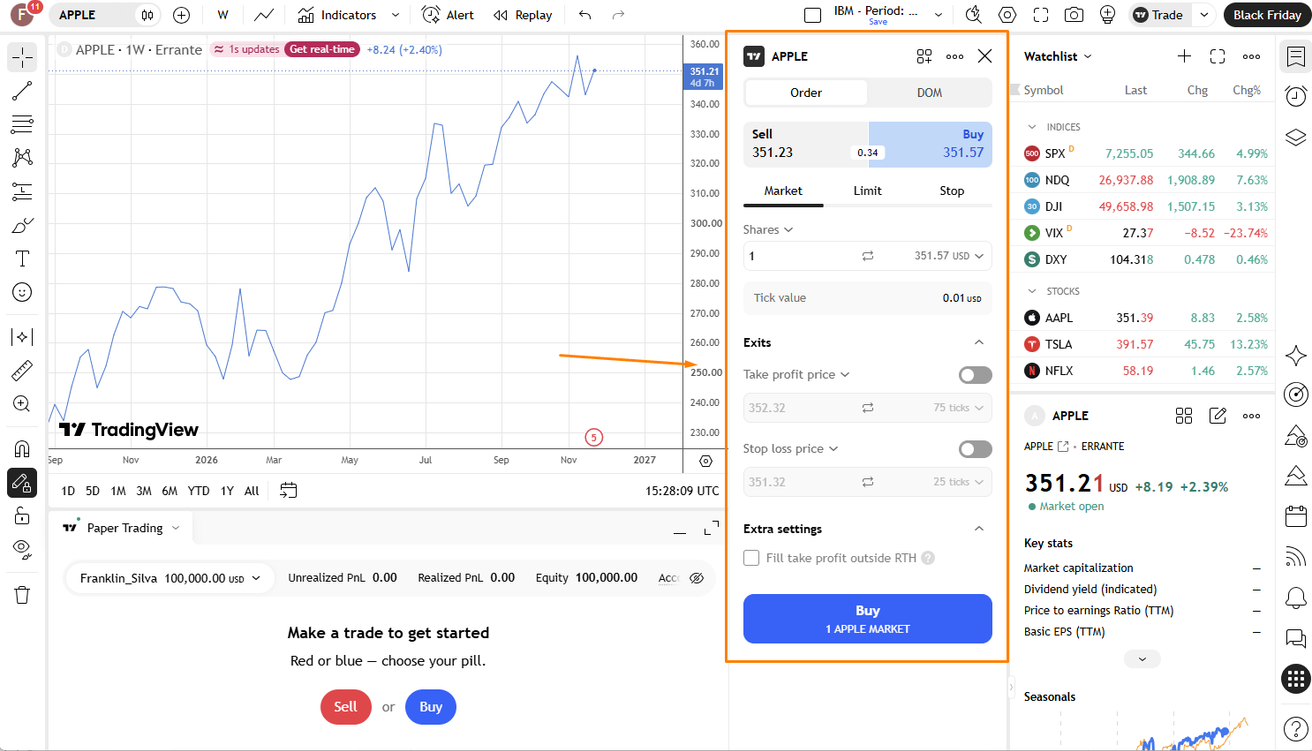
The Trading Panel with the $100,000 balance. Screenshot from our own TradingView account, 23 November 2026.
- Place your first order: use the order ticket, the chart or the depth of market (DOM), which we cover in the next section.
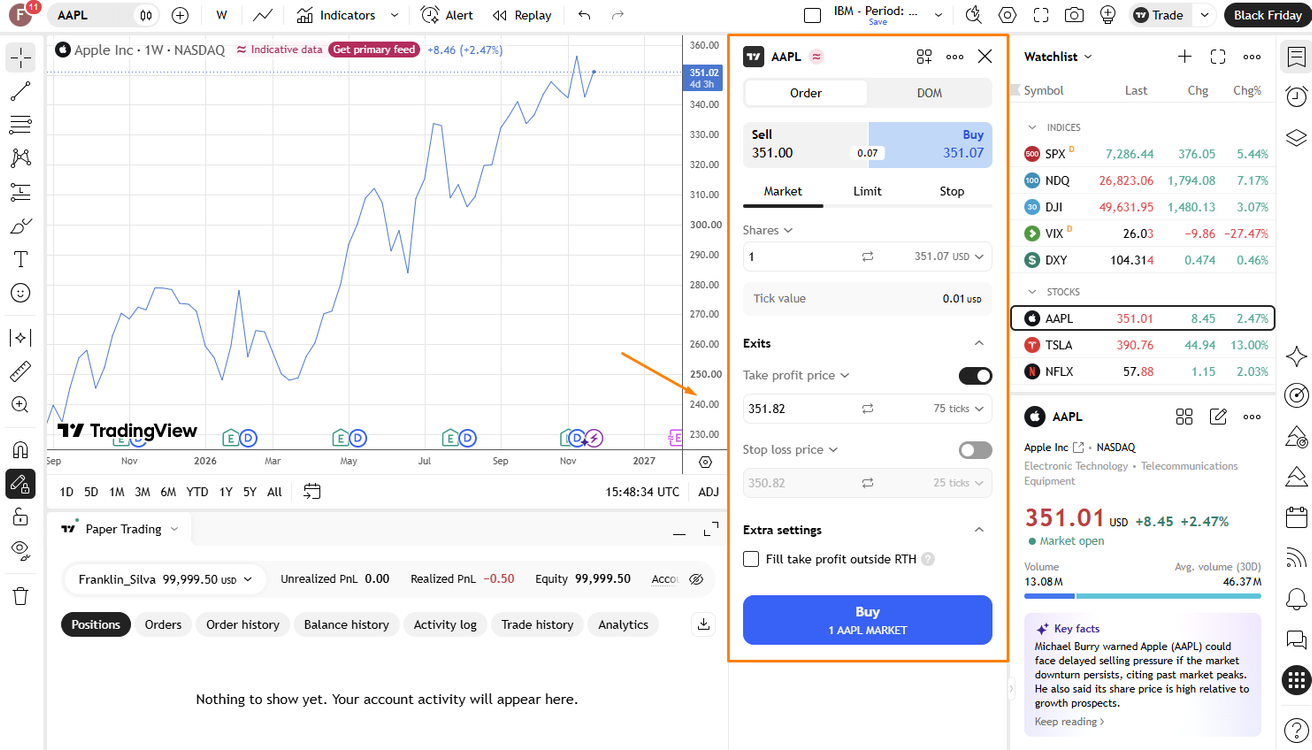
The order ticket with a take profit. Screenshot from our own TradingView account, 23 November 2026.
To leave the simulator, open the trading menu in the top-right corner of the Trading Panel and click Log out Paper Trading, as explained in TradingView's guide to connecting a paper account.
How to place a paper trade
TradingView gives you three ways to send an order, and all of them work with the paper account.
- Order ticket: a panel where you choose the side (buy or sell), the quantity, the order type (market, limit or stop) and the stop loss and take profit levels.
- Chart trading: you place, drag, modify and close orders directly on the price chart.
- Depth of market (DOM): a ladder that shows the buy and sell orders at each price level, where you can click to trade.
Orders and positions are tracked in real time in the Trading Panel, which has tabs for Positions, Orders, Order history, Balance history, Activity log, Trade history and Analytics. For stocks with pre-market and after-hours sessions, limit orders can also run outside regular hours if you tick the Outside RTH box in the order panel (RTH stands for regular trading hours).
In our account, a market order for 1 Apple share on NASDAQ, with a take profit at $351.82, was filled at $350.81 within seconds and TradingView confirmed it with a notification.
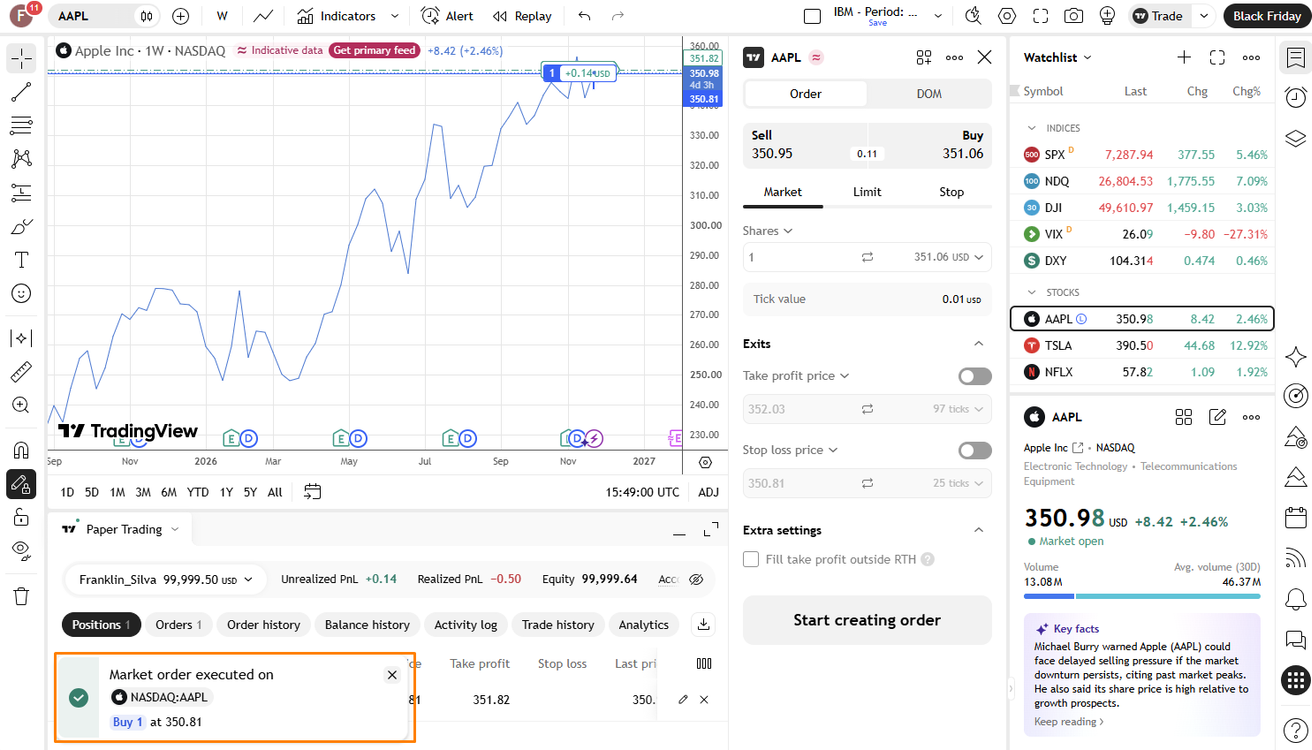
A paper market order after execution. Screenshot from our own TradingView account, 23 November 2026.
The position then shows in the Positions tab with its average fill price and unrealized profit or loss (PnL). The bar above the tabs shows the balance, the equity, the account margin in use and the funds still available. With 1x leverage on stocks, our position of 1 share used $349.26 of margin, which is its full market value.
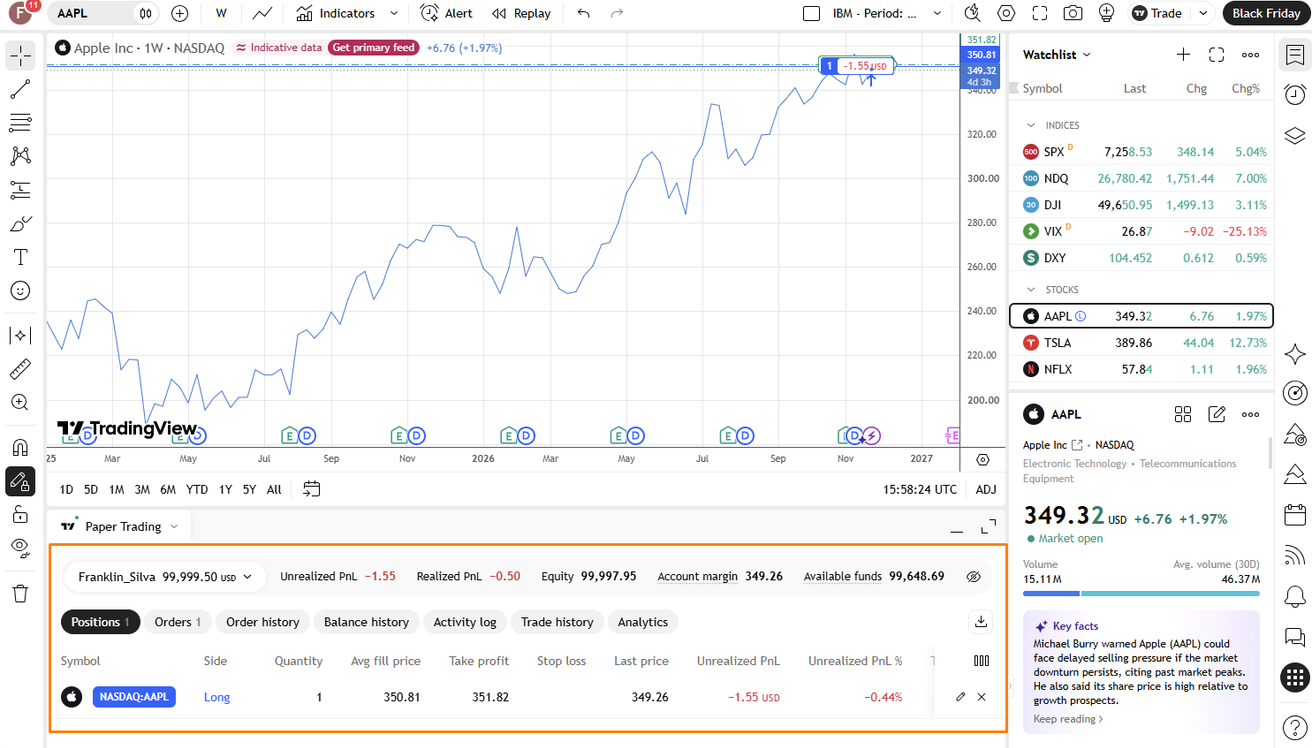
An open position in the Trading Panel. Screenshot from our own TradingView account, 23 November 2026.
How to reset your paper trading account
Click the account name in the Trading Panel to open the Account settings window and click Reset account at the bottom. TradingView then asks for the new balance and lets you pick a new account currency.
A reset deletes your trading history, orders and positions, so export or note anything you want to keep. If you want to test a second strategy without losing the first, create another paper sub-account and switch between them in the Trading Panel.
Set the balance close to the amount you plan to invest. Position sizes learned on $100,000 do not transfer well to a $2,000 account.
Leverage and commissions
The paper account comes with leverage already set for each asset class, based on values that brokers and exchanges commonly use. TradingView's example is the E-mini S&P 500 future, with a 5% margin, which equals 20x leverage. You can change the leverage per asset class, or type a custom value, in the account settings, as the leverage guide explains. If an order needs more margin than you have available, it is not executed.
In our account, the default leverage was 1x for stocks, 20x for futures, 50x for forex, 10x for crypto and 50x for other assets. The futures list offered values from 1x to 500x, plus a custom leverage option.
Commissions are switched off by default, which makes paper results look better than real ones. In the account settings you can add a percentage or a fixed amount per order, and a commission per contract for futures and options. In TradingView's example, 3 ES contracts at $1.25 each cost $3.75, charged when you open and again when you close.
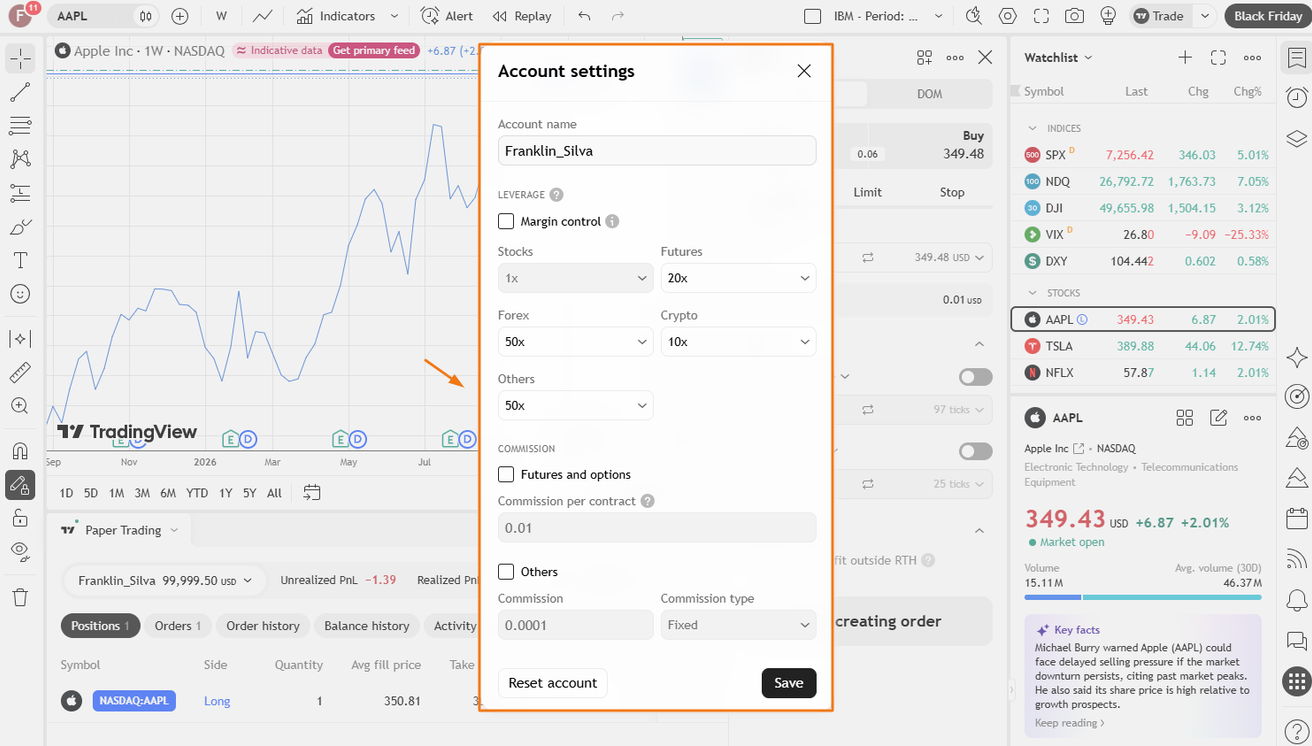
Leverage, commissions and reset in Account settings. Screenshot from our own TradingView account, 23 November 2026.
What can you paper trade on TradingView?
According to TradingView, the simulator supports almost every asset class on the platform.
- Stocks: including extended hours on symbols that have those sessions.
- Forex and crypto: with the leverage you set for each class.
- Futures: classic and crypto futures. Expired positions close automatically at the final settlement price and every future is treated as cash-settled, which is a simplification of real trading.
- Options: TradingView's paper trading page does not list options among the supported assets, although the commission settings have a field called Futures & Options. Check the order panel for the option you want to trade before you rely on it.
Is paper trading data in real time?
Paper orders are filled with the prices TradingView shows you, so the quality of the data matters. Crypto exchanges are in real time for everyone. For many stock and futures exchanges the free data is delayed, and TradingView's paid plans do not include those exchange fees. US stock prices come from the Cboe exchange by default, so they differ slightly from the primary exchanges.
If you see "Data is delayed" on the chart, you can buy the real-time feed for that exchange. On TradingView's market data page, the US stock markets bundle is listed at $9.95 a month. Delayed data is enough for learning how orders work, but not for testing a day trading strategy.
Other ways to practise on TradingView
Paper trading is one of four demo features on TradingView.
- Bar Replay: replays past price movements from a date you choose, so you can practise decisions on historical data.
- Strategy report: backtests a strategy on historical data and shows net profit, win rate, drawdown and other metrics. Only one strategy can run on a chart at a time.
- The Leap: a recurring paper trading competition with a public leaderboard and cash prizes. Each edition runs for about two weeks and has its own rules.
Pros and cons of TradingView paper trading
Pros
- Free on every plan, with no deposit
- $100,000 in virtual funds, with a balance and currency you can change
- Several sub-accounts to test different strategies
- Leverage and commissions can be set to match a real broker
- Futures expiry and settlement are simulated
Cons
- No real money at stake, so it does not train your emotions
- Commissions are off by default, which flatters the results
- Data is delayed on many stock and futures exchanges unless you pay for real time
- All futures are treated as cash-settled
- Options are not listed among the supported assets
From paper trading to a real account
When you are ready, the same Trade button lists the brokers you can connect to TradingView in your region, and the order ticket works the same way. Keep in mind that quotes in the order panel then come from your broker. If you prefer to practise inside a broker's own app, see our guides to the eToro demo account and Robinhood paper trading.
Disclaimer: When investing, your capital is at risk and you may get back less than invested. This article is for information only and is not tax or investment advice.
FAQs
Is TradingView paper trading free?
Yes. TradingView describes paper trading as a risk-free simulator with no fees, available to all users, including those on the free Basic plan.
How much money do you get in TradingView paper trading?
The account starts with $100,000 in virtual funds. You can change the balance and the currency when you reset the account or create a new sub-account.
How do I reset my TradingView paper trading account?
Click the account name in the Trading Panel to open Account settings, then click Reset account at the bottom of the window. The reset deletes your trading history, orders and positions.
Can you paper trade options on TradingView?
TradingView's paper trading page lists stocks, forex, crypto and futures as supported assets and does not mention options. The commission settings do include a Futures & Options field, so check the order panel for the contract you want.
Is TradingView paper trading in real time?
Orders are tracked in real time, but the prices depend on your data. Crypto is in real time for everyone, while many stock and futures exchanges are delayed unless you buy the real-time feed.
Does TradingView paper trading work on mobile?
TradingView says you can trade from the browser, the desktop app, a tablet and a phone. The steps in this guide were written for Supercharts on the web.